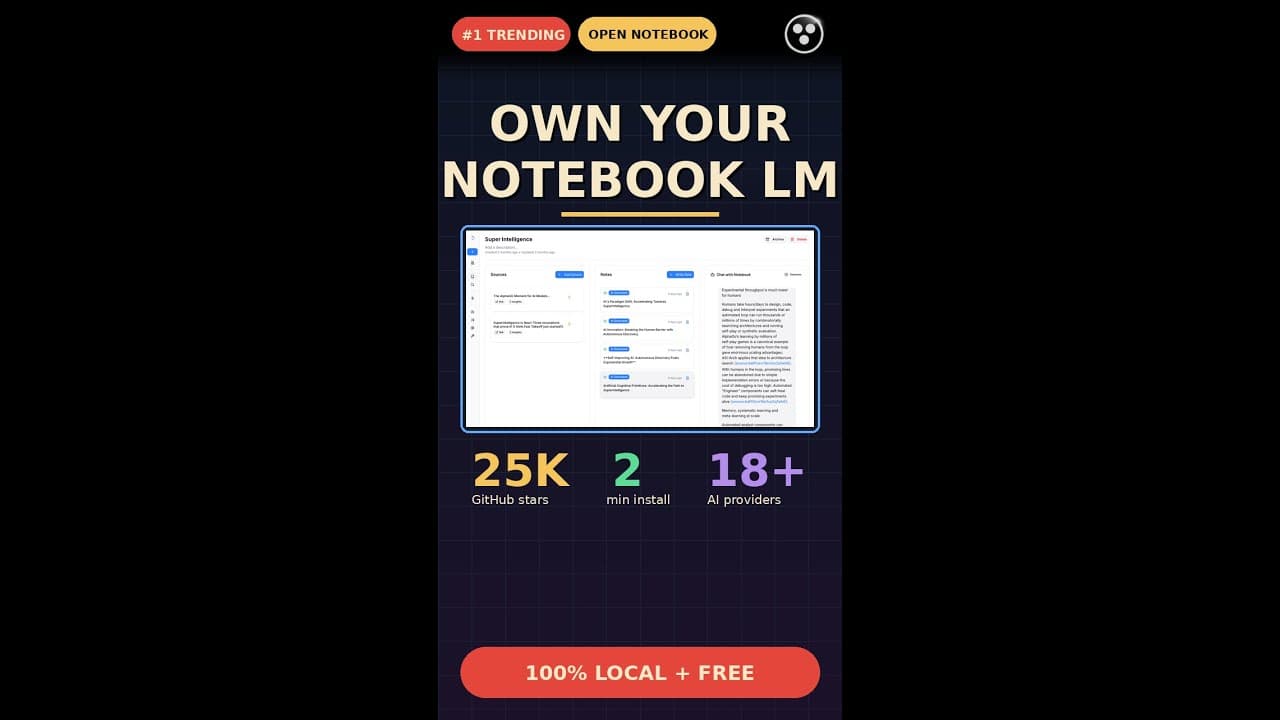
If you’ve ever wished Google’s Notebook LM ran entirely on your laptop—no cloud, no data leaks—**Open Notebook LM** is the answer. This MIT-licensed, 25,000-star GitHub repo lets you drop in PDFs, YouTube links, audio, and web pages, then query them with **local AI models** from Ollama, LM Studio, or even OpenAI. Your data stays yours, and the answers come with citations. It’s the **privacy-first notebook** developers and researchers have been waiting for.
Key Takeaways
- Open Notebook LM is a **100% local**, open-source alternative to Google Notebook LM with 25K+ GitHub stars.
- Supports **18+ AI providers**, including Ollama, LM Studio, Anthropic, and OpenAI (API optional).
- MIT licensed and free—no subscriptions, no cloud dependency, and **no data leaves your machine**.
- Ingest PDFs, YouTube videos, audio files, and web pages to generate cited answers and multi-speaker podcasts.
- Ideal for developers, researchers, and privacy-conscious users who need **offline AI notebooks**.
▶ Watch on YouTube · Subscribe for daily AI tools
What Is Open Notebook LM?
Open Notebook LM is an **open-source AI notebook** that runs entirely on your local machine. Unlike Google’s Notebook LM, which relies on cloud processing, this tool keeps all your data and queries offline. It’s built for **privacy, flexibility, and control**, making it a favorite among developers and researchers.
The project recently hit **25,000 stars on GitHub**, a testament to its growing popularity. It’s MIT licensed, meaning you can use, modify, and distribute it freely. No hidden costs, no vendor lock-in—just a **local AI notebook** that works with your existing hardware.
- 100% local execution: No cloud dependency, no data sent to third parties.
- Multi-provider support: Works with Ollama, LM Studio, OpenAI, Anthropic, and 15+ others.
- Ingest diverse sources: PDFs, YouTube links, audio files, and web pages.
- Cited answers: Responses include references to the source material.
Why Open Notebook LM Matters
For developers and researchers, **data privacy** is non-negotiable. Open Notebook LM solves this by keeping everything local. There’s no risk of leaks, no reliance on cloud APIs, and no surprise bills. It’s a **self-hosted AI notebook** that puts you in control.
Another key advantage is **flexibility**. With support for 18+ AI providers, you’re not tied to a single model or vendor. Use **Ollama for local LLMs**, LM Studio for fine-tuned models, or OpenAI’s API if you prefer. This makes it ideal for experimentation and production use cases alike.
- Privacy-first: Your data never leaves your machine—no cloud, no tracking.
- No vendor lock-in: Switch between AI providers without changing tools.
- MIT licensed: Free to use, modify, and distribute for any purpose.
- Offline capability: Works without an internet connection (if using local models).
How to Set Up Open Notebook LM: Step-by-Step
Setting up Open Notebook LM is straightforward, even for beginners. The project is designed to run on most modern machines, including laptops. Here’s how to get started:
First, clone the repository from GitHub. The repo includes detailed instructions, but the basics are simple. You’ll need Python 3.10+ and Git installed. Run:
git clone https://github.com/your-repo/open-notebook-lm.git
cd open-notebook-lm
pip install -r requirements.txt
Next, configure your AI provider. Open Notebook LM supports multiple backends, so choose the one that fits your needs. For **local execution**, Ollama or LM Studio are great choices. For cloud APIs, OpenAI or Anthropic work seamlessly.
- Ollama setup: Install Ollama, then pull your preferred model (e.g.,
ollama pull llama3). - LM Studio setup: Download LM Studio, load a model, and start the local server.
- OpenAI setup: Add your API key to the config file (optional).
Finally, launch the application. Run the following command to start the local server:
python app.py
Open your browser to http://localhost:5000, and you’re ready to go. The interface is clean and intuitive, with options to upload files, add web links, or record audio directly.
Real Capabilities and Features
Open Notebook LM isn’t just a basic notebook—it’s a **full-featured AI workspace**. Here’s what you can do with it:
First, **ingest and query diverse sources**. Drop in PDFs, YouTube videos, audio files, or web pages. The tool processes them locally and lets you ask questions. For example, upload a research paper and ask, “What are the key findings?” The response will include **citations** to the relevant sections.
- Multi-speaker podcast generation: Convert documents into a conversational podcast with distinct voices.
- Web page ingestion: Scrape and analyze articles or documentation without leaving the app.
- Audio transcription: Upload recordings and get searchable, cited transcripts.
Another standout feature is **multi-provider AI support**. You’re not limited to a single model. Switch between **Ollama, LM Studio, OpenAI, or Anthropic** depending on your needs. This is especially useful for comparing outputs or testing different models.
The tool also includes **collaboration features**. While it’s designed for local use, you can export notebooks as JSON or Markdown and share them with others. This makes it easy to collaborate without compromising privacy.
Finally, Open Notebook LM is **highly extensible**. The MIT license means you can modify the code to fit your workflow. Add custom integrations, tweak the UI, or build plugins—it’s all up to you.
Real-World Use Cases for Open Notebook LM
Developers and researchers are already using **Open Notebook LM** to solve concrete problems without sending data to the cloud. Here are three scenarios where the tool shines.
1. Secure Legal or Medical Research
Lawyers and clinicians often work with **sensitive documents** that can’t leave their machines. Open Notebook LM lets them ingest case files, medical papers, or HIPAA-protected records, then query them locally. No API calls, no third-party servers—just **cited answers** pulled from the documents themselves.
- Drop in a 200-page PDF of case law and ask: “Summarize the rulings on breach of contract.”
- Upload a patient’s lab reports and ask: “What are the contraindications for Drug X?”
- Generate a **multi-speaker podcast** simulating a legal debate or medical case review.
2. Local AI-Powered Podcast Production
Content creators can turn research into **ready-to-publish audio** without leaving their laptops. Open Notebook LM’s podcast feature lets you assign voices to speakers, generate scripts from ingested sources, and export as WAV or MP3. No cloud TTS, no subscription fees.
- Feed in a YouTube lecture and ask: “Create a 5-minute podcast episode explaining the key points.”
- Use **Ollama’s Mistral model** for natural-sounding narration, or switch to **LM Studio** for lower latency.
- Export the final audio and edit in Audacity or Descript.
3. Offline Coding or Documentation Q&A
Developers can ingest **entire codebases** (Python, JavaScript, Rust) or API docs, then query them without an internet connection. This is ideal for air-gapped environments or travel.
- Drop in a GitHub repo and ask: “Explain the authentication flow in this Flask app.”
- Upload a 500-page framework manual and ask: “What’s the difference between v2 and v3 of this function?”
- Use **local embeddings** (e.g., via Sentence Transformers) for faster retrieval.
Pro Tips and Common Mistakes to Avoid
Open Notebook LM is powerful, but small tweaks can save hours of frustration. Here’s what to do—and what to skip.
Do: Optimize Your Local Models
Not all **local AI models** are equal. For best results:
- Use **quantized models** (e.g., 4-bit or 8-bit) to reduce RAM usage. Ollama and LM Studio both support these.
- Test latency with `ollama run mistral:7b` vs. `mistral:7b-instruct-q4_K_M`. The latter is faster but may sacrifice nuance.
- For **cited answers**, prioritize models fine-tuned for retrieval (e.g., **LlamaIndex’s Llama 2 variants**).
Don’t: Overload the Ingestion Pipeline
Open Notebook LM can handle **PDFs, audio, and web pages**, but cramming in 100+ files at once will slow it down. Instead:
- Batch files into groups of 10-20 for faster processing.
- Use the `–chunk-size` flag (default: 512 tokens) to balance speed and accuracy. Smaller chunks = faster but less context.
- Avoid **OCR-heavy PDFs** (e.g., scanned books) unless you pre-process them with Tesseract or Adobe Acrobat.
Do: Leverage the API for Automation
The tool’s **REST API** (port 5000 by default) lets you script workflows. Examples:
- Automatically ingest new Slack messages or GitHub issues with a cron job.
- Trigger podcast generation from a **Make.com** or Zapier workflow.
- Use `curl -X POST http://localhost:5000/api/ingest -F “file=@notes.pdf”` to add files programmatically.
Don’t: Ignore the MIT License’s Limits
The **MIT license** is permissive, but it doesn’t cover the AI models you use. Key caveats:
- If you use **OpenAI’s API**, you’re bound by their terms—even if Open Notebook LM runs locally.
- Some **local models** (e.g., Llama 2) have additional restrictions (e.g., no commercial use without a license).
- Always check the model’s license before deploying in production.
How It Compares
Open Notebook LM isn’t the only **privacy-first notebook** on the market. Here’s how it stacks up against alternatives:
| Tool | Local/Cloud | AI Providers | Data Privacy | Key Features | Pricing |
|---|---|---|---|---|---|
| Open Notebook LM | 100% local | 18+ (Ollama, LM Studio, OpenAI API optional) | No data leaves your machine | Cited answers, podcast generation, REST API, MIT licensed | Free |
| Google Notebook LM | Cloud-only | Google’s models only | Data processed on Google’s servers | Google Docs integration, voice notes, limited citations | Free (with Google account) |
| Obsidian + Local Plugins | Local (with optional cloud sync) | Limited (e.g., Ollama via plugins) | Depends on plugins; some send data to APIs | Markdown-first, graph view, community plugins | Free (plugins may have costs) |
| Mem.ai | Cloud + local app | Proprietary + OpenAI API | Data stored on Mem’s servers | AI-powered search, calendar integration, team features | Freemium ($10/user/month for teams) |
FAQ
1. Does Open Notebook LM work offline?
Yes. Once you’ve installed the tool and downloaded your preferred **local AI models** (e.g., via Ollama or LM Studio), it runs entirely offline. You can ingest files, query them, and generate podcasts without an internet connection. The only exception is if you opt to use **OpenAI’s API**, which requires online access.
2. What’s the minimum hardware needed to run it?
Open Notebook LM works on most modern laptops, but performance depends on your **local AI model**. For smooth operation, aim for at least 16GB RAM and a 4-core CPU. For larger models (e.g., 13B parameters), 32GB RAM and an NVIDIA GPU (for CUDA acceleration) are recommended. The tool runs on Windows, macOS, and Linux.
3. Can I use it with my own fine-tuned models?
Absolutely. Open Notebook LM supports **custom models** via Ollama or LM Studio. If you’ve fine-tuned a model (e.g., for medical or legal jargon), you can load it locally and use it just like any other provider. The tool’s flexibility is one of its biggest strengths—no vendor lock-in.
4. How does it handle citations?
The tool generates **cited answers** by linking each claim to the source document and page number. For example, if you ask, “What’s the main argument in this paper?”, it’ll return a summary with footnotes like “[Source: paper.pdf, p. 12]”. This is ideal for academic or professional work where traceability matters.
5. Is there a mobile app?
Not yet. Open Notebook LM is a **desktop-first** tool, but the community is exploring mobile-friendly forks. For now, you can run it on a laptop or a **Raspberry Pi** (with limited performance). If you need mobile access, consider syncing your notebooks to a local folder and using a third-party app like **Obsidian** for viewing.
Final Verdict
Open Notebook LM is the **best privacy-first notebook** for developers, researchers, and professionals who refuse to compromise on data ownership. Its **MIT license**, support for **18+ AI providers**, and ability to generate **cited answers** and **multi-speaker podcasts** locally make it a standout. While it requires some setup (e.g., downloading models), the payoff is a tool that works offline, never leaks data, and costs nothing.
If you’re already using **Ollama** or **LM Studio**, Open Notebook LM will feel like a natural extension. If you’re coming from Google Notebook LM, the transition is seamless—just with the added benefit of **100% local control**. For teams or individuals handling sensitive data, this is the notebook you’ve been waiting for.
Ready to dive deeper? Check out our free guides on setting up local AI tools, or explore our AI tools directory for more open-source alternatives.