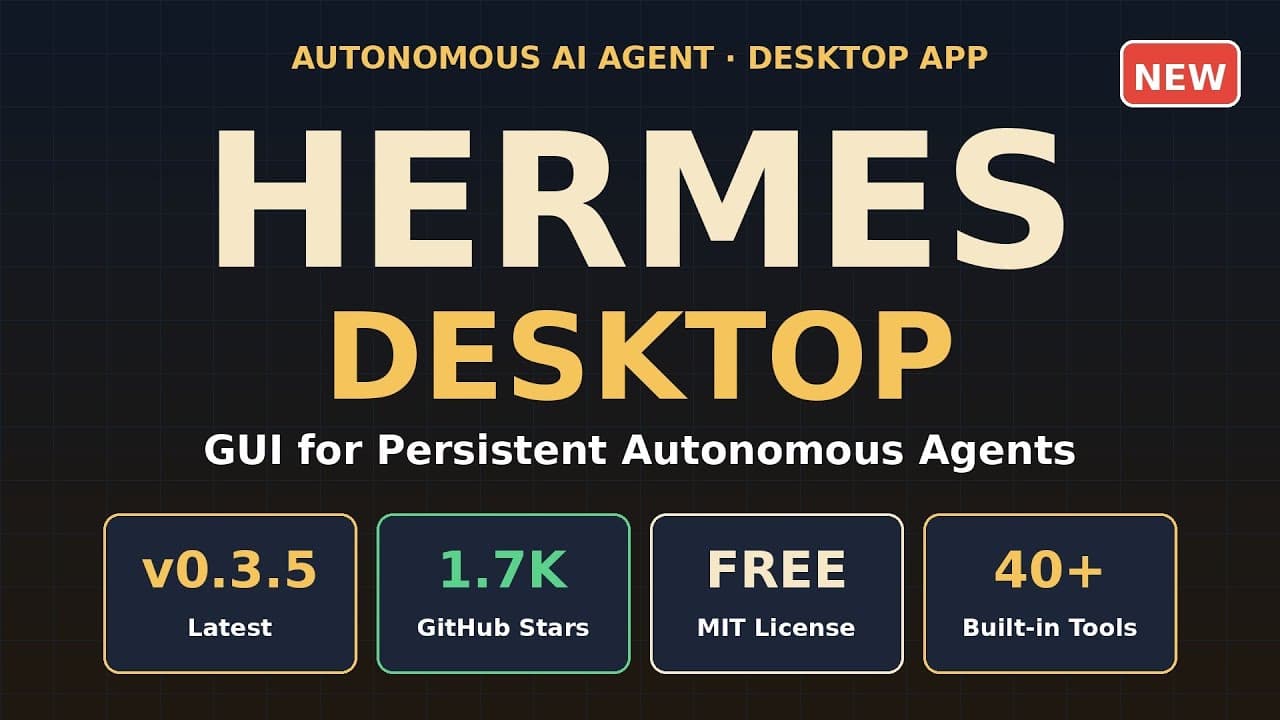
If you’ve ever wanted **autonomous AI agents** that actually stick around—no cloud timeout, no subscription—**Hermes Desktop** delivers. It’s the first open-source tool that gives you a true GUI for persistent agents running entirely on your local hardware. No more juggling CLI scripts or losing state when you close a terminal.
Key Takeaways
- **Hermes Desktop** is an open-source, GUI-driven platform for **persistent autonomous AI agents** on your local machine.
- Agents retain memory and state between sessions, unlike most cloud-based or CLI-only alternatives.
- Installation is straightforward: clone, install dependencies, and launch the GUI in minutes.
- Use cases include coding assistance, research automation, and long-running workflows without cloud costs.
- Hermes competes with tools like OpenClaw but offers a cleaner, more intuitive interface.
▶ Watch on YouTube · Subscribe for daily AI tools
What Is Hermes Desktop?
Hermes Desktop is an open-source project that lets you run **persistent autonomous AI agents** with a real graphical interface. Unlike most AI agents that vanish when you close a tab or lose internet, Hermes agents keep running—and remembering—on your local machine.
At its core, Hermes is built on three pillars:
- Persistence: Agents maintain state and memory across sessions, so they don’t “forget” tasks or context.
- Autonomy: Agents can execute multi-step workflows without constant human input, using tools like web browsing, code execution, or API calls.
- Local-first: No cloud dependency means no subscription fees, no data privacy concerns, and no rate limits.
The project is MIT-licensed and available on GitHub. It’s designed for developers, researchers, and power users who need AI agents that don’t disappear after 30 minutes of inactivity.
Why Persistent Local Agents Matter
Most AI agents today are either cloud-based or ephemeral. Cloud agents (like those in AI tools) time out, cost money, and send your data off-device. CLI-based agents (like AutoGPT or BabyAGI) are powerful but lack a GUI, making them harder to monitor and debug.
Hermes Desktop solves both problems. Here’s why it’s a game-changer:
- No cloud lock-in: Run agents entirely on your hardware, avoiding vendor lock-in and recurring costs.
- True persistence: Agents remember past actions, conversations, and goals—even after you reboot your machine.
- Privacy by default: Sensitive data never leaves your device, making it ideal for proprietary code or confidential research.
- GUI for usability: A real interface makes it easier to monitor, pause, or adjust agents on the fly.
For developers, this means you can offload repetitive tasks (like code reviews or documentation generation) to an agent that remembers your preferences. For researchers, it’s a way to automate literature reviews or data analysis without hitting API limits.
How to Set Up Hermes Desktop: Step-by-Step
Installing Hermes Desktop is straightforward, even if you’re not a CLI expert. Here’s how to get it running in under 10 minutes:
- Prerequisites:
- A machine running Linux, macOS, or Windows (via WSL2).
- Python 3.10 or later installed.
- Git for cloning the repository.
- Clone the repository:
Open a terminal and run:
git clone https://github.com/HermesDesktop/HermesDesktop.git
cd HermesDesktop - Install dependencies:
Create a virtual environment (recommended) and install requirements:
python -m venv venv
source venv/bin/activate # Linux/macOS
venv\Scripts\activate # Windows
pip install -r requirements.txt - Launch the GUI:
Run the main script to start the interface:
python hermes.pyA window will open with the Hermes dashboard. From here, you can create, monitor, and manage agents.
Troubleshooting tip: If you hit dependency errors, check the project’s wiki for OS-specific fixes. Most issues stem from missing system libraries (like libssl on Linux).
Real Capabilities and Features
Hermes Desktop isn’t just a pretty interface—it’s packed with features that make **autonomous AI agents** practical for real work. Here’s what you can do with it:
- Multi-tool integration:
- Web browsing (via Selenium or Playwright).
- Code execution in isolated environments (Docker or local Python).
- API calls to services like GitHub, Notion, or custom endpoints.
- Memory and context:
Agents use a vector database (like Chroma or FAISS) to store and retrieve past interactions. This means they can:
- Remember user preferences (e.g., “always use Python 3.11 for this project”).
- Reference past conversations or documents without re-prompting.
- Build long-term knowledge bases for research or development.
- Custom workflows:
Define sequences of actions for agents to follow autonomously. Examples:
- “Every morning, check my GitHub notifications and summarize them in Slack.”
- “Monitor this API endpoint and alert me if the response changes.”
- “Generate a weekly report from my Jira tickets and save it as a PDF.”
- GUI controls:
The interface lets you:
- Pause, resume, or kill agents with a click.
- View real-time logs and agent “thoughts” (debugging made easy).
- Adjust agent parameters (e.g., creativity, verbosity) on the fly.
For power users, Hermes supports custom tool plugins. You can write Python scripts to extend agent capabilities (e.g., adding a Stripe API wrapper or a custom CLI tool). The plugin system is documented in the project’s free guides.
Real-World Use Cases for Hermes Desktop
**Persistent autonomous AI agents** aren’t just a novelty—they solve real friction in workflows that span hours or days. Here are three concrete scenarios where **Hermes Desktop** shines.
Long-Running Research Assistants are a perfect fit. Imagine you’re writing a 20-page paper on quantum computing. Instead of opening 50 browser tabs, you spin up a Hermes agent with a prompt like:
- “Monitor arXiv for new preprints on quantum error correction. Summarize each in 3 bullet points and save to ~/research/quantum.”
- “Every 6 hours, check my Zotero library for unread papers and auto-generate APA citations.”
The agent keeps running overnight, even if you close your laptop. When you reopen Hermes in the morning, the summaries are waiting in your folder.
Codebase Maintainers can offload tedious chores. A Hermes agent can:
- Watch a Git repo and auto-generate changelogs from commit messages (using conventional-commits).
- Run `pytest` on every save and ping you in Slack if coverage drops below 80%.
- Scan for TODOs in the codebase and create GitHub issues with proper labels.
Agents persist across IDE restarts, so the watcher never misses a file change.
Personal Productivity gets a boost. Set an agent to:
- Parse your calendar and auto-block focus time 30 minutes before deep-work sessions.
- Monitor your email inbox and surface only threads that mention “invoice” or “contract.”
- Scrape local weather and adjust your smart thermostat via Home Assistant API.
Because the GUI is always visible, you can glance at the agent’s status without digging through logs.
Pro Tips & Common Mistakes to Avoid
Getting the most from **Hermes Desktop** means sidestepping a few early pitfalls. Here’s what the docs don’t always highlight.
State Management is the biggest gotcha. Hermes agents use a SQLite database (`~/.hermes/state.db`) to persist memory. If you:
- Delete the database file, the agent loses all context.
- Run two agents with the same name, they’ll overwrite each other’s state.
- Use relative paths in prompts, the agent may lose track when you move the project.
Pro tip: Always use absolute paths and give each agent a unique name like `research-agent-v2`.
Resource Limits can sneak up on you. Hermes agents run in-process, so:
- A single agent with a large context window (16k tokens) can consume 2-3 GB RAM.
- Running 5 agents simultaneously may max out a 16 GB MacBook Pro.
- Long-running agents that spawn subprocesses (e.g., `git`) can leave zombie processes.
Mitigate this by setting a `max_memory_mb` flag in the agent config or using `htop` to monitor usage.
Prompt Engineering still matters. Hermes uses the same LLM backends as other tools, so:
- Avoid vague prompts like “help me code.” Instead, use: “Write a Python function that parses JSON logs and returns a list of errors.”
- Use the GUI’s “Test Prompt” button to iterate before committing to a long run.
- Chain prompts: first ask the agent to outline a plan, then approve it before execution.
Remember: **autonomous AI agents** are only as smart as the instructions you give them.
How It Compares
| Feature | Hermes Desktop | OpenClaw | AutoGPT (CLI) |
|---|---|---|---|
| GUI | Native desktop app (Electron) | Web UI (browser) | CLI only |
| Persistence | Full state retention (SQLite) | Partial (Redis, optional) | None (ephemeral) |
| Installation | One-click binary or `git clone` | `docker-compose up` | `pip install autogpt` |
| Resource Usage | Low (in-process) | High (Docker overhead) | Medium (Python VM) |
| Open Source | Yes (MIT) | Yes (Apache 2.0) | Yes (MIT) |
FAQ
Can Hermes Desktop agents access the internet?
Yes, but with caveats. Hermes agents can make HTTP requests via Python’s `requests` library or shell commands like `curl`. However, the GUI doesn’t include a built-in sandbox, so avoid running untrusted agents that might exfiltrate data. For security, use a firewall or run Hermes in a VM.
What LLMs does Hermes support?
Hermes works with any OpenAI-compatible API, including local models via Ollama or LM Studio. The GUI includes presets for `gpt-4o`, `llama3`, and `mistral`. To add a custom model, edit the `config.yaml` file and specify the API endpoint and key.
How do I debug a misbehaving agent?
Start with the GUI’s “Logs” tab, which shows real-time output. For deeper debugging, enable `verbose_mode: true` in the agent’s config file. If the agent crashes, check `~/.hermes/state.db` for corruption—delete it and restart if needed. Common issues include infinite loops (set a `max_steps` limit) or API rate limits.
Can I run Hermes on a Raspberry Pi?
Technically yes, but performance will be slow. Hermes requires at least 4 GB RAM and a 64-bit OS. On a Pi 4 (8 GB), it runs but struggles with large context windows. For lightweight use cases (e.g., a home automation agent), it’s viable. For coding or research, use a more powerful machine.
Is there a way to share agents between team members?
Not natively, but you can export an agent’s config and state files (`config.yaml` and `state.db`) and share them via Git or a shared drive. Recipients must place the files in their `~/.hermes/` directory and restart Hermes. Future versions may include a sync feature, but for now, this is a manual process.
Final Verdict
If you’ve been frustrated by **autonomous AI agents** that vanish when you close your terminal or rack up cloud bills, **Hermes Desktop** is the cleanest solution available today. It combines the persistence of a database-backed agent with the usability of a native GUI—no Docker, no CLI incantations, just a double-click to launch.
For developers, researchers, or power users who need agents that stick around, Hermes is the best open-source option. It’s not perfect (debugging can be tricky, and resource limits require monitoring), but the trade-offs are worth it for the convenience and control.
Ready to try it? Clone the repo, follow the free guides for your first agent, and let the GUI handle the rest. Your future self will thank you when you reopen your laptop to find your agent still humming along.