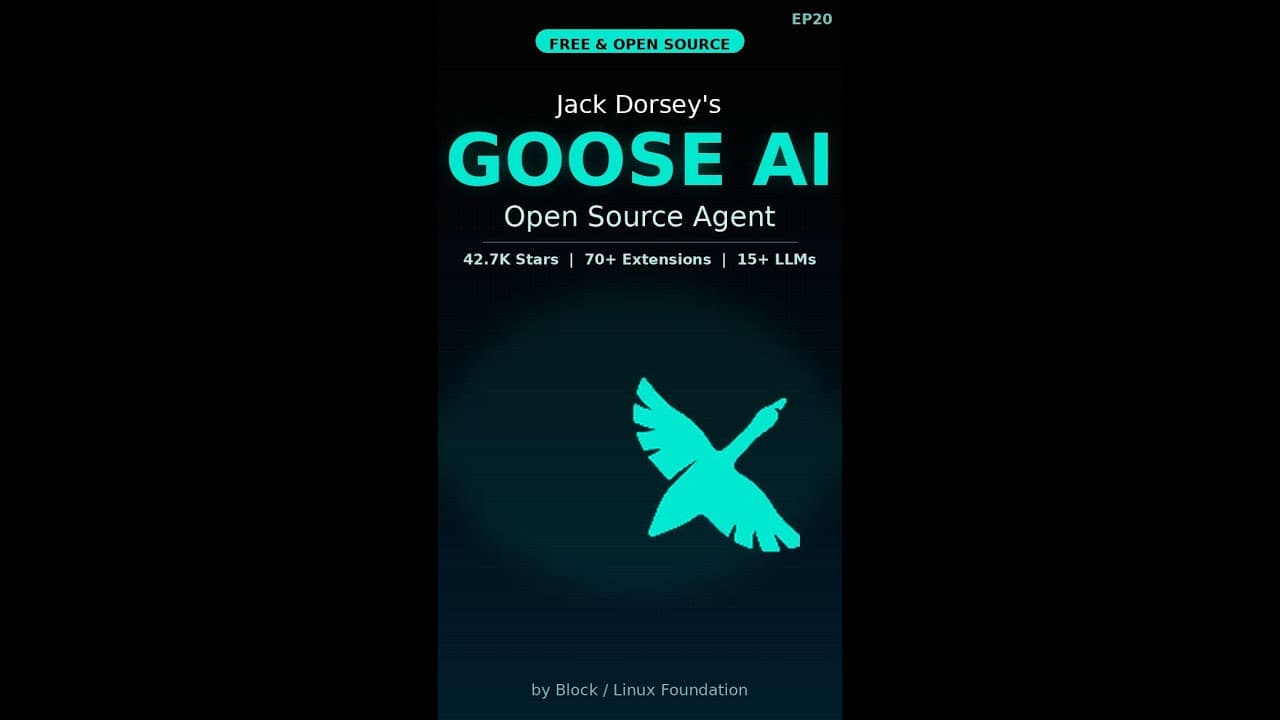
If you’ve ever wished for a **general-purpose AI agent** that runs entirely on your machine—no cloud dependencies, no monthly fees—Jack Dorsey’s latest open-source project might be the answer. **Goose AI**, released by Block, is a self-hosted AI tool designed to handle coding, research, automation, and data analysis without sending your data to third-party servers. It’s not just another chatbot; it’s a full-stack agent that integrates with your desktop, CLI, and API workflows.
Key Takeaways
- Goose AI is an open-source, self-hosted AI agent built by Block (Jack Dorsey’s company) for local execution.
- Runs as a desktop app, CLI tool, and API—no cloud required, ensuring privacy and offline functionality.
- Handles coding, research, automation, and data analysis with a modular architecture for custom workflows.
- Requires minimal setup: clone the GitHub repo, install dependencies, and configure a local LLM (e.g., Llama 3).
- Competes with closed-source agents like Devin and Cursor but prioritizes transparency and user control.
▶ Watch on YouTube · Subscribe for daily AI tools
What Is Goose AI?
Goose AI is a **general-purpose AI agent** developed by Block’s AI team and released under an open-source license. Unlike most AI tools that rely on cloud APIs (e.g., OpenAI’s GPT-4), Goose runs entirely on your hardware, making it ideal for privacy-conscious developers, researchers, and businesses.
The agent is built around three core interfaces:
- Desktop app: A GUI for non-technical users to interact with the agent via natural language.
- CLI (Command Line Interface): For developers who prefer scripting and automation.
- API: Enables integration with existing tools, IDEs, or custom applications.
Under the hood, Goose uses a **modular architecture** that lets you plug in different **local LLMs** (e.g., Llama 3, Mistral) or even fine-tuned models. This flexibility ensures you’re not locked into a single provider or model size—critical for teams with specific performance or compliance needs.
As of its initial release, Goose supports:
- Python, JavaScript, and Go for coding tasks (with more languages planned).
- Web browsing and document parsing for research automation.
- Basic data analysis (e.g., CSV/JSON processing) via local scripts.
Why Goose AI Matters
The rise of **AI agents** like Devin, Cursor, and GitHub Copilot has shown the demand for tools that go beyond chatbots. However, most of these solutions are proprietary, cloud-dependent, and expensive. Goose AI stands out for three key reasons:
- Privacy and Security:
Since Goose runs locally, your code, data, and prompts never leave your machine. This is a game-changer for industries like healthcare, finance, or government, where data sovereignty is non-negotiable. No more worrying about API leaks or compliance violations from third-party services.
- Cost Efficiency:
Cloud-based AI agents can rack up bills quickly—especially for teams running frequent or complex tasks. Goose eliminates recurring costs by leveraging your existing hardware and free, open-source models. The only expense is your time (and electricity).
- Customizability:
Proprietary agents often force you into their workflow. Goose’s open-source nature means you can:
- Modify the source code to fit your needs.
- Swap out the underlying LLM for a smaller or domain-specific model.
- Add custom plugins for niche tasks (e.g., CAD design, bioinformatics).
For developers, Goose also serves as a **learning tool**. The GitHub repo includes detailed documentation on how the agent works, from prompt engineering to memory management. This transparency is rare in the AI space, where most tools are black boxes.
How to Set Up Goose AI: Step-by-Step
Getting Goose AI running on your machine takes less than 30 minutes if you’re familiar with the command line. Here’s how to do it:
Prerequisites
- A Linux, macOS, or Windows (WSL) machine with at least 16GB RAM (32GB recommended for larger models).
- Python 3.10+ and Git installed.
- A local LLM (e.g., Llama 3 or Mistral) running via Ollama, LM Studio, or another inference server.
Installation Steps
- Clone the Repository:
Open a terminal and run:
git clone https://github.com/block/goose-ai.git cd goose-ai - Install Dependencies:
Create a virtual environment and install the required packages:
python -m venv venv source venv/bin/activate # On Windows: venv\Scripts\activate pip install -r requirements.txt - Configure the LLM:
Edit the
config.yamlfile to point Goose to your local LLM’s API endpoint. For example, if you’re using Ollama with Llama 3:llm: provider: "ollama" model: "llama3" base_url: "http://localhost:11434" - Launch Goose:
Start the agent in CLI mode:
python goose.py --mode cliFor the desktop app, run:
python goose.py --mode gui
That’s it! Goose will now listen for commands. Try asking it to write a Python script to scrape Hacker News or explain this research paper (if you’ve loaded the PDF into its working directory).
Troubleshooting Tips
- LLM Not Responding? Verify your local inference server is running and the
base_urlinconfig.yamlis correct. - Slow Performance? Reduce the LLM’s context window or switch to a smaller model (e.g., Llama 3 8B instead of 70B).
- Missing Dependencies? Check the GitHub issues page for platform-specific fixes.
Goose AI’s Capabilities and Features
Goose AI isn’t just a chatbot with extra steps—it’s designed to act as a **collaborative agent** that can:
1. Coding Assistance
- Code Generation: Write functions, classes, or entire scripts from natural language prompts (e.g.,
Create a Flask API with JWT auth). - Debugging: Paste error messages, and Goose will suggest fixes or explain the root cause.
- Refactoring: Optimize legacy code or convert between languages (e.g., Python to Rust).
- IDE Integration: Use the API to connect Goose to VS Code, Neovim, or JetBrains IDEs for inline suggestions.
2. Research and Automation
- Web Browsing: Scrape websites, summarize articles, or extract structured data (e.g.,
Find the latest papers on LLMs from arXiv). - Document Parsing: Analyze PDFs, CSVs, or JSON files to answer questions or generate reports.
- Task Automation: Chain multiple steps into workflows (e.g.,
Download this dataset, clean it, and train a model).
3. Data Analysis
- Exploratory Analysis: Load a dataset and ask Goose to generate insights (e.g.,
What are the key trends in this sales data?). - Visualization: Create plots using Matplotlib or Seaborn via text prompts.
- Statistical Tests: Run t-tests, regressions, or other analyses without writing code.
4. Unique Features
- Memory Management: Goose can remember context across sessions, allowing for long-running projects (e.g.,
Continue working on the React app from yesterday). - Plugin System: Extend functionality with custom plugins (e.g., Docker management, API testing).
- Offline Mode: No internet? No problem. Goose works entirely locally once set up.
While Goose is still in its early stages, its roadmap includes:
- Support for more LLMs (e.g., Phi-3, Gemma).
- Advanced multi-agent collaboration (e.g., one agent for coding, another for research).
- GUI improvements for non-technical users.
Real-World Use Cases for Goose AI
Goose AI isn’t just a theoretical tool—it’s built for practical, everyday workflows. Here’s how developers, researchers, and power users are already putting it to work.
1. Local Code Generation and Debugging
Imagine you’re refactoring a legacy Python script. Instead of Googling syntax or waiting for GitHub Copilot’s cloud suggestions, Goose AI runs locally and generates context-aware snippets in real time.
- Write a prompt like
Refactor this nested loop into a list comprehensionand get instant, executable code. - Debug by pasting error logs: Goose suggests fixes without exposing proprietary code to external APIs.
- Works offline—ideal for secure environments like banks or government projects.
2. Automated Research and Summarization
Researchers use Goose to digest PDFs, academic papers, or API docs. Feed it a 50-page whitepaper, and it extracts key insights, citations, and even generates a TL;DR in Markdown.
- Drag-and-drop files into the desktop app for instant analysis.
- Ask follow-ups like
Summarize section 3 in bullet pointsorCompare these two studies. - Outputs can be piped to Obsidian, Notion, or a local database.
3. Data Analysis Without Cloud Lock-In
Data scientists often hit limits with cloud-based tools like Google Colab. Goose processes CSV/JSON files locally, running Pandas or SQL queries without uploading sensitive datasets.
- Load a 1GB dataset and ask
Show outliers in column XorGenerate a correlation heatmap. - Integrates with Jupyter notebooks via its API for seamless workflows.
- No rate limits or hidden costs—just raw compute on your hardware.
Pro Tips and Common Mistakes to Avoid
Even the most powerful tools fail if misconfigured. Here’s how to get the most out of Goose AI—and what to sidestep.
Pro Tips
- Optimize your hardware: Goose runs best on machines with 16GB+ RAM and an NVIDIA GPU (for CUDA acceleration). Use
nvidia-smito check compatibility. - Leverage the CLI for automation: Pipe Goose’s output to other tools. Example:
goose "Write a Python script to scrape X" | python. - Customize prompts with context: Instead of
Write a blog post, tryWrite a 500-word blog post about Goose AI in a technical but approachable tone, with a call-to-action to check the GitHub repo. - Use the API for modular workflows: Integrate Goose into your existing stack. Example: A Flask endpoint that triggers Goose to analyze user feedback in real time.
Common Mistakes
- Ignoring dependency conflicts: Goose requires Python 3.10+ and specific versions of PyTorch. Use
pip install -r requirements.txt --no-depsto avoid clashes. - Overloading the context window: Goose’s default model (Llama 3.1 8B) has a 8K token limit. For long documents, split tasks or use the
--chunkflag. - Assuming it’s a drop-in replacement for cloud tools: Goose excels at local tasks but lacks some cloud features (e.g., real-time web browsing). Pair it with tools like Serper for search if needed.
- Skipping the config file: The
config.yamllets you set default models, output formats, and safety filters. Spend 5 minutes tweaking it to save hours later.
How It Compares
How does Goose AI stack up against other self-hosted and cloud-based AI agents? Here’s a head-to-head breakdown.
| Feature | Goose AI | PrivateGPT | Ollama | GitHub Copilot (Cloud) |
|---|---|---|---|---|
| Hosting | Local (self-hosted) | Local (self-hosted) | Local (self-hosted) | Cloud (Microsoft) |
| Primary Use Case | General-purpose agent (code, research, automation) | Document Q&A | Model serving | Code completion |
| Offline Support | ✅ Yes | ✅ Yes | ✅ Yes | ❌ No |
| API/CLI/Desktop | ✅ All three | ✅ CLI only | ✅ CLI + API | ✅ IDE plugins |
| Custom Workflows | ✅ High (modular plugins) | ❌ Limited | ⚠️ Medium (model-dependent) | ❌ No |
| Pricing | Free (open-source) | Free (open-source) | Free (open-source) | $10–$20/month |
FAQ
1. What hardware do I need to run Goose AI?
Goose AI runs on most modern machines, but performance scales with resources. A minimum of 8GB RAM and a quad-core CPU will work for light tasks, while 16GB+ RAM and an NVIDIA GPU (for CUDA) are ideal for heavy workloads like data analysis or running larger models (e.g., Llama 3.1 70B). Check the README.md for GPU acceleration setup.
2. Can Goose AI access the internet?
No. Goose AI is designed for local execution and doesn’t include built-in web browsing or API calls to external services. For tasks requiring internet access, you’ll need to pre-fetch data or integrate a separate tool (e.g., curl or a Python scraper) into your workflow.
3. How do I update Goose AI to the latest version?
Since Goose is open-source, updates are managed via Git. Run git pull origin main in the project directory, then reinstall dependencies with pip install -r requirements.txt. Major updates (e.g., model changes) may require reconfiguring your config.yaml file.
4. Is Goose AI suitable for enterprise use?
Yes, but with caveats. Goose AI’s self-hosted nature makes it attractive for enterprises handling sensitive data. However, it lacks built-in features like user management or audit logs. For production use, consider containerizing it with Docker and adding a reverse proxy (e.g., Nginx) for security.
5. Can I fine-tune Goose AI’s models?
Technically, yes—Goose supports custom model weights, but fine-tuning requires significant GPU resources and ML expertise. The default models (e.g., Llama 3.1) are optimized for general use. For domain-specific tasks, you might need to train a smaller model separately and load it via Goose’s --model-path flag.
Final Verdict
Goose AI is a game-changer for developers and power users who prioritize privacy, customization, and offline functionality. It’s not a silver bullet—it won’t replace cloud-based tools for tasks requiring real-time data or massive scale—but for local code generation, research, and automation, it’s one of the most flexible open-source options available.
If you’re tired of vendor lock-in or monthly fees, Goose AI is worth the setup time. Start with the GitHub repo, follow the quick-start guide, and experiment with its CLI and API. For deeper dives, check out our free guides on self-hosting AI tools.
Ready to take control of your AI workflows? Clone Goose today and see what it can do—entirely on your terms.